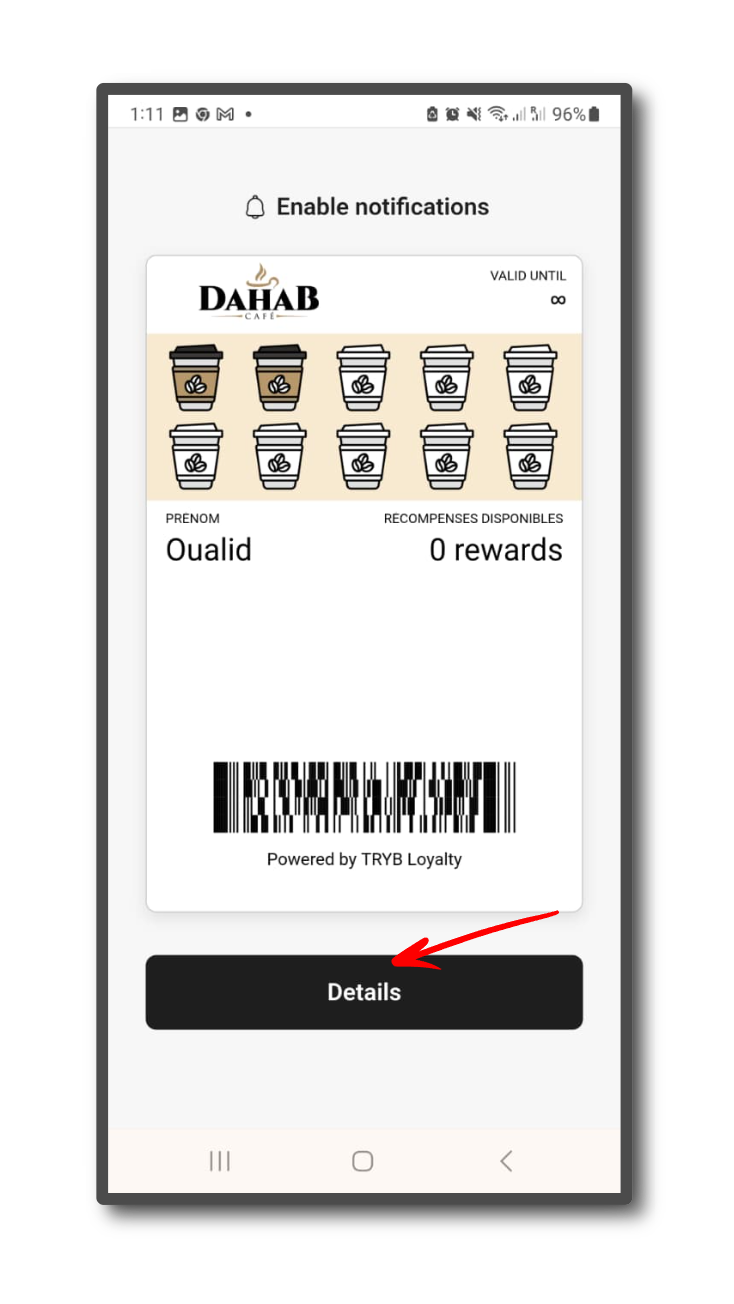
TRYB Loyalty > Left-Hand Menu > Cards > Select Card
1. Follow the above-mentioned workflow to land on the Card Information section.
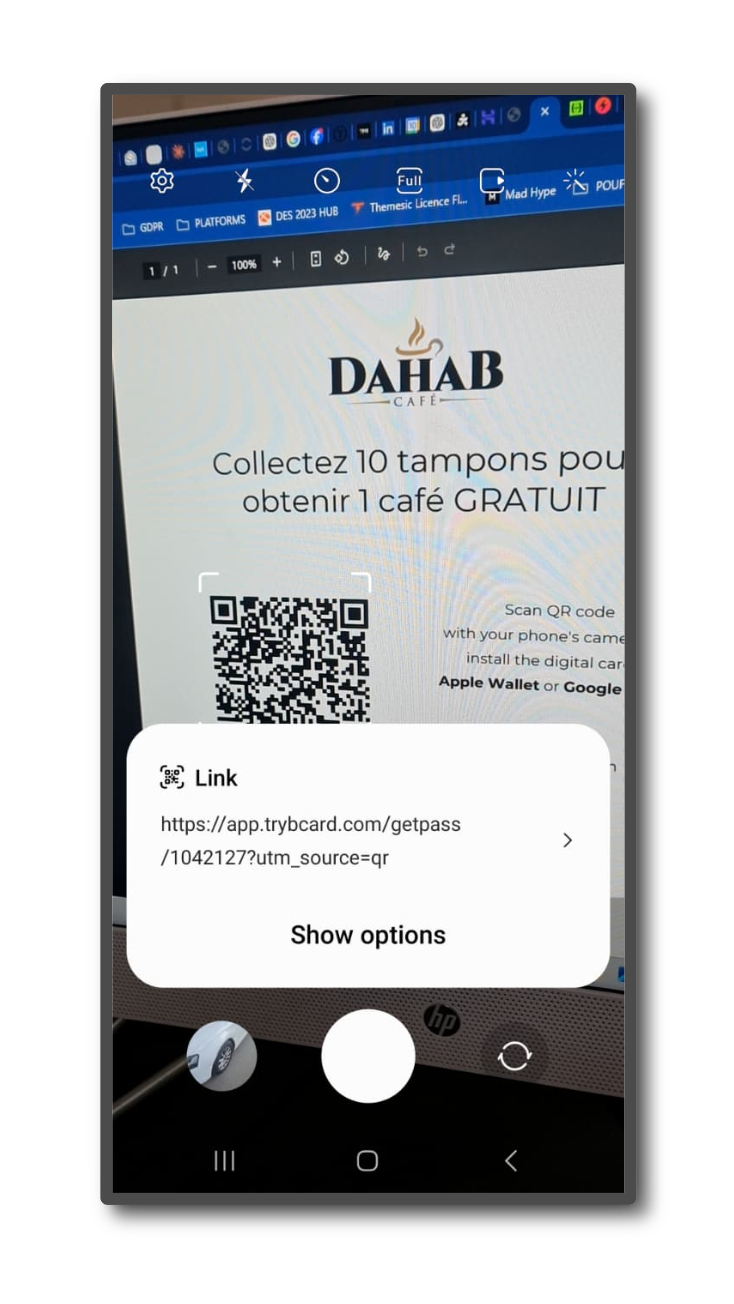
2. Scan the QR code from your Android device. This takes you to the Card Issuing Form.
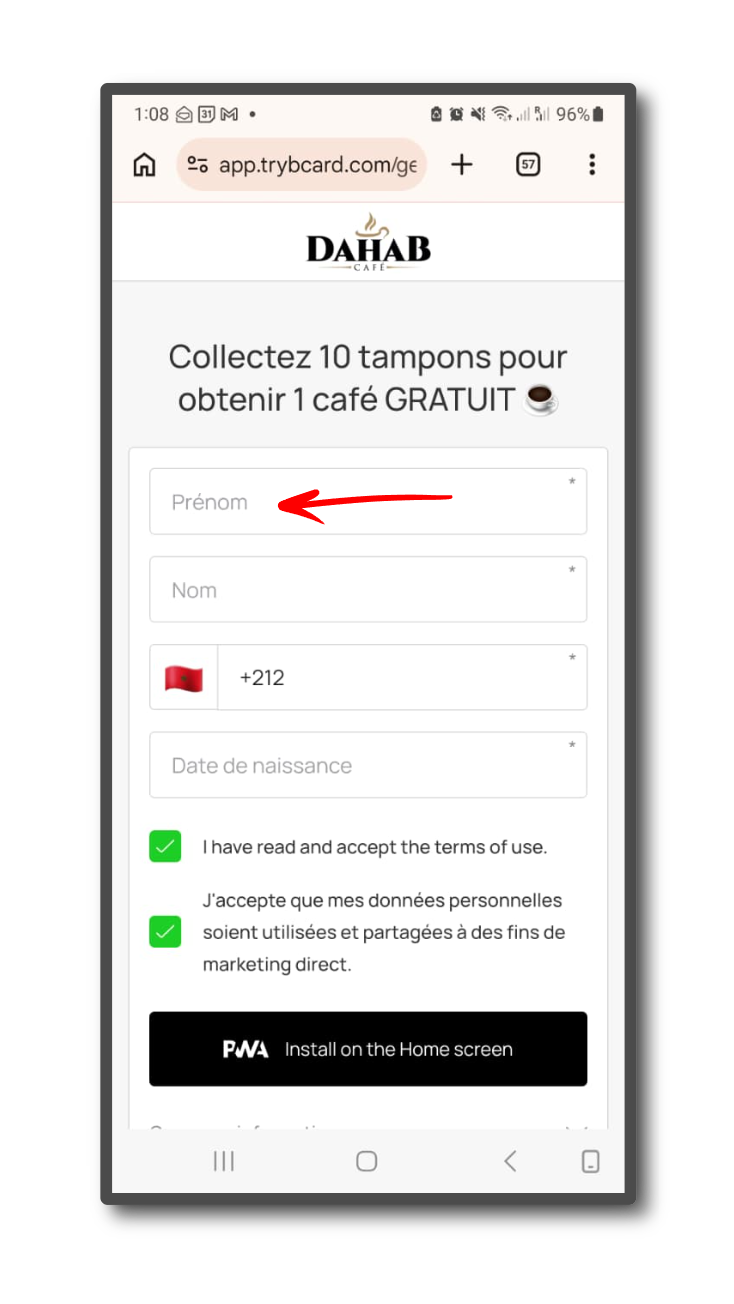
3. Use the First Name field to record your first name.
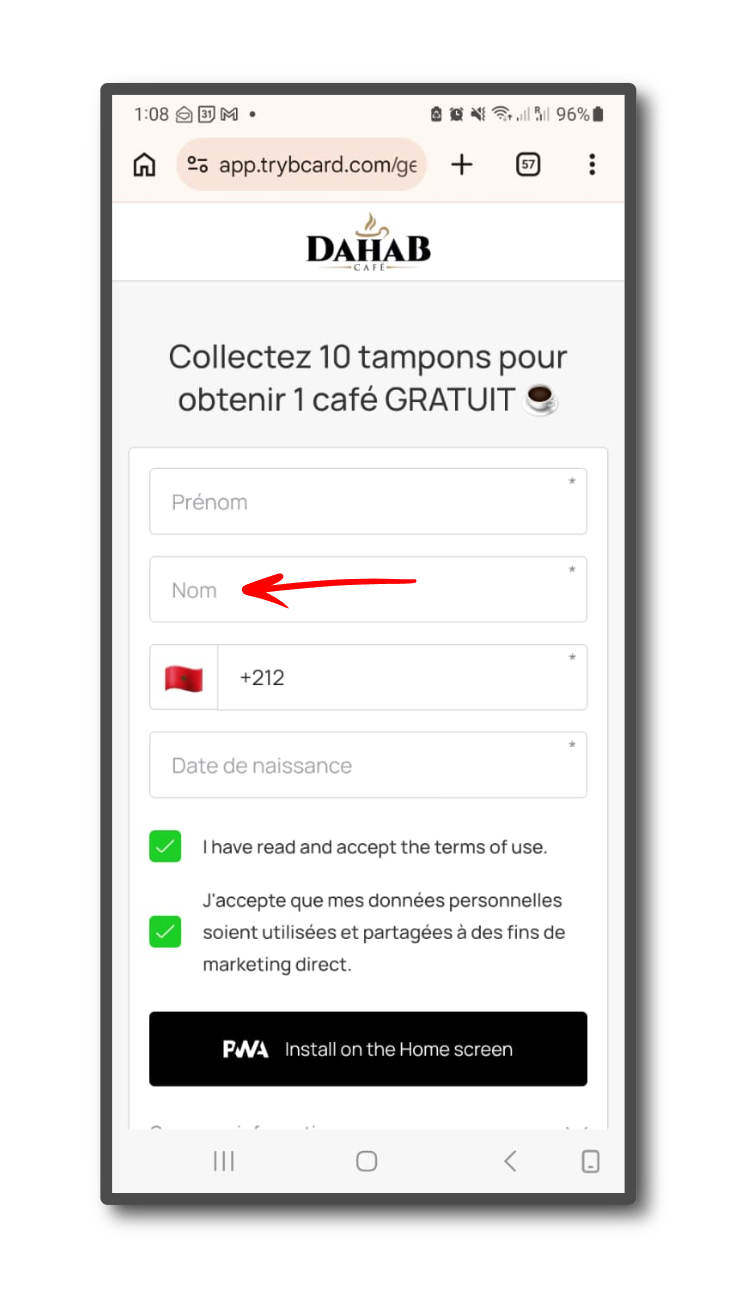
4. Similarly, enter your last name in the Last Name field.
5. Enter your contact number in the Contact Number field.
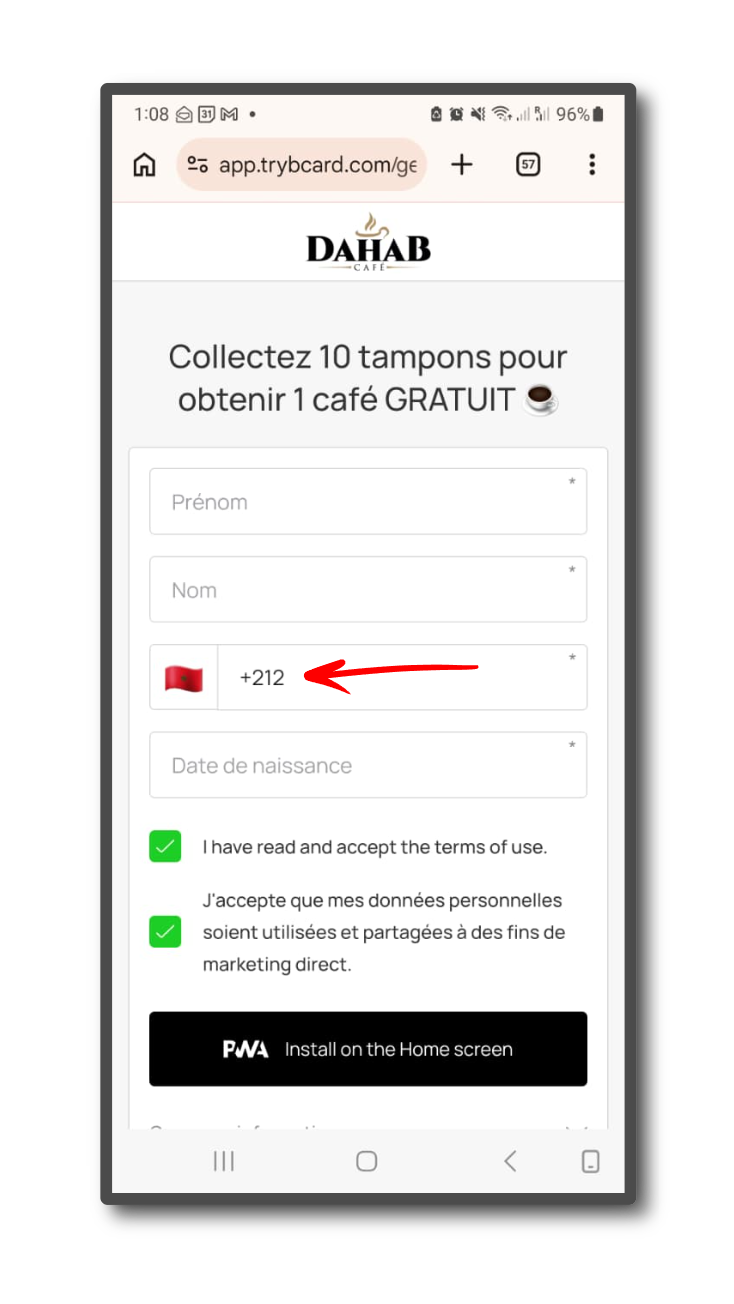
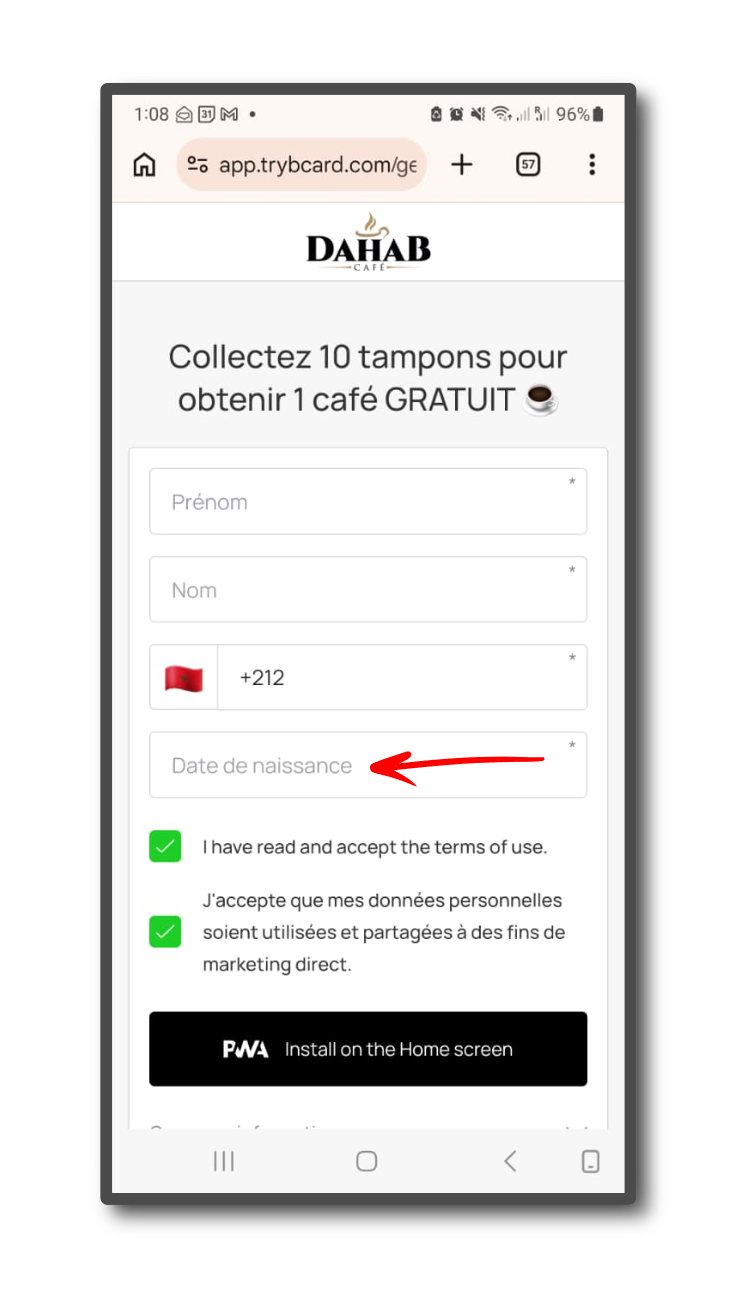
6. Use the Date of Birth field to record your date of birth.
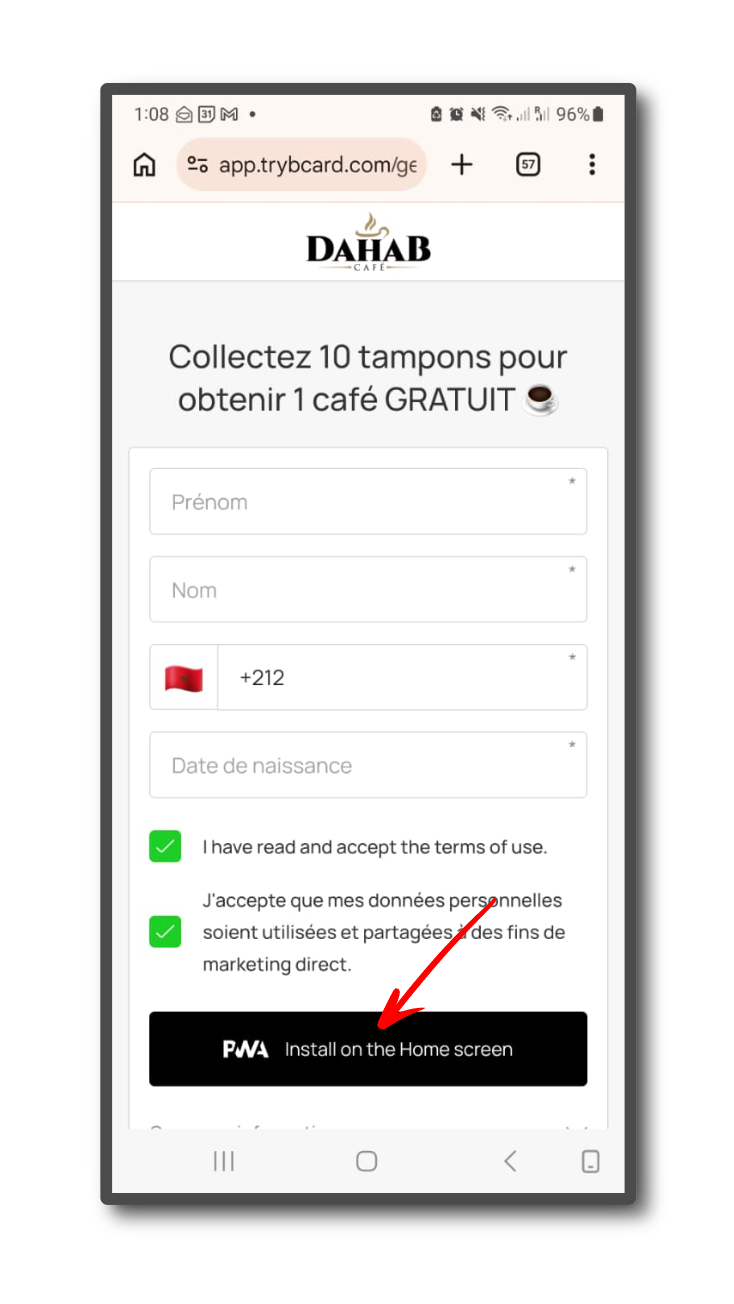
7. To install the card on your home screen, click the Install on Home Screen button.
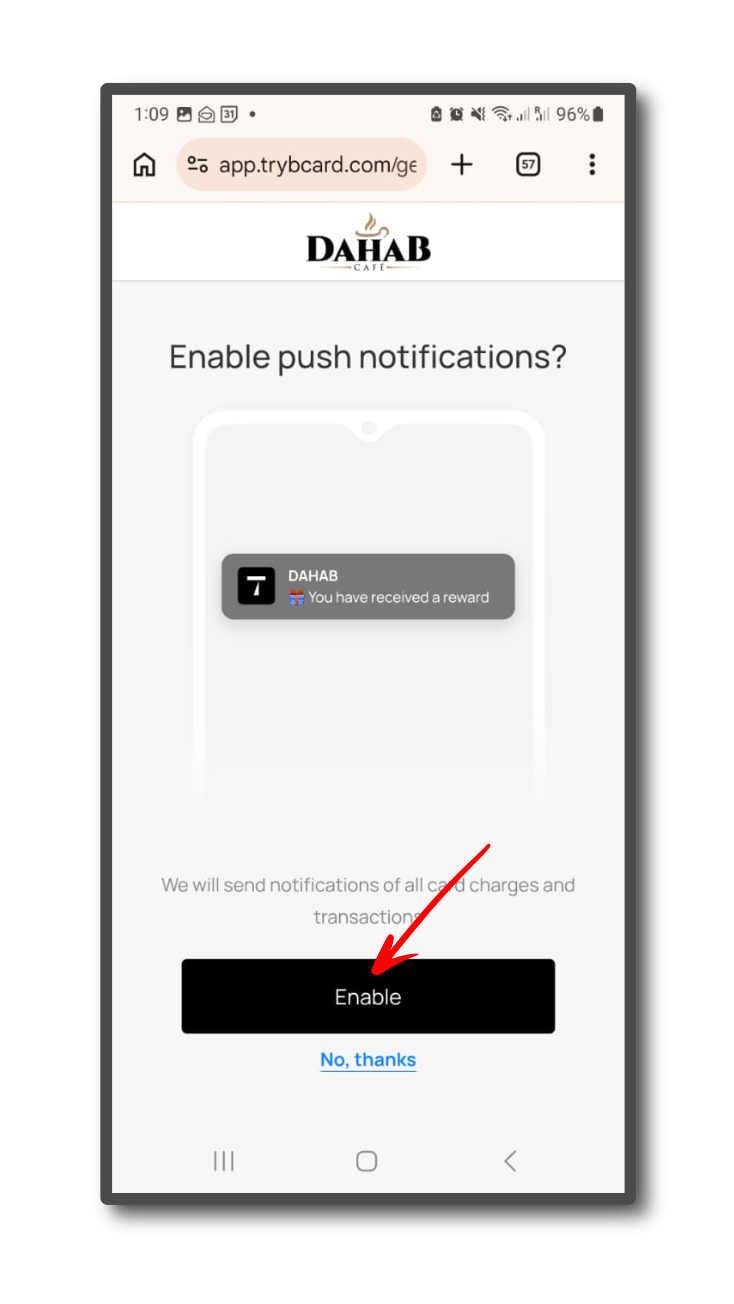
8. This opens the push notifications confirmation screen. To enable, click the Enable button.
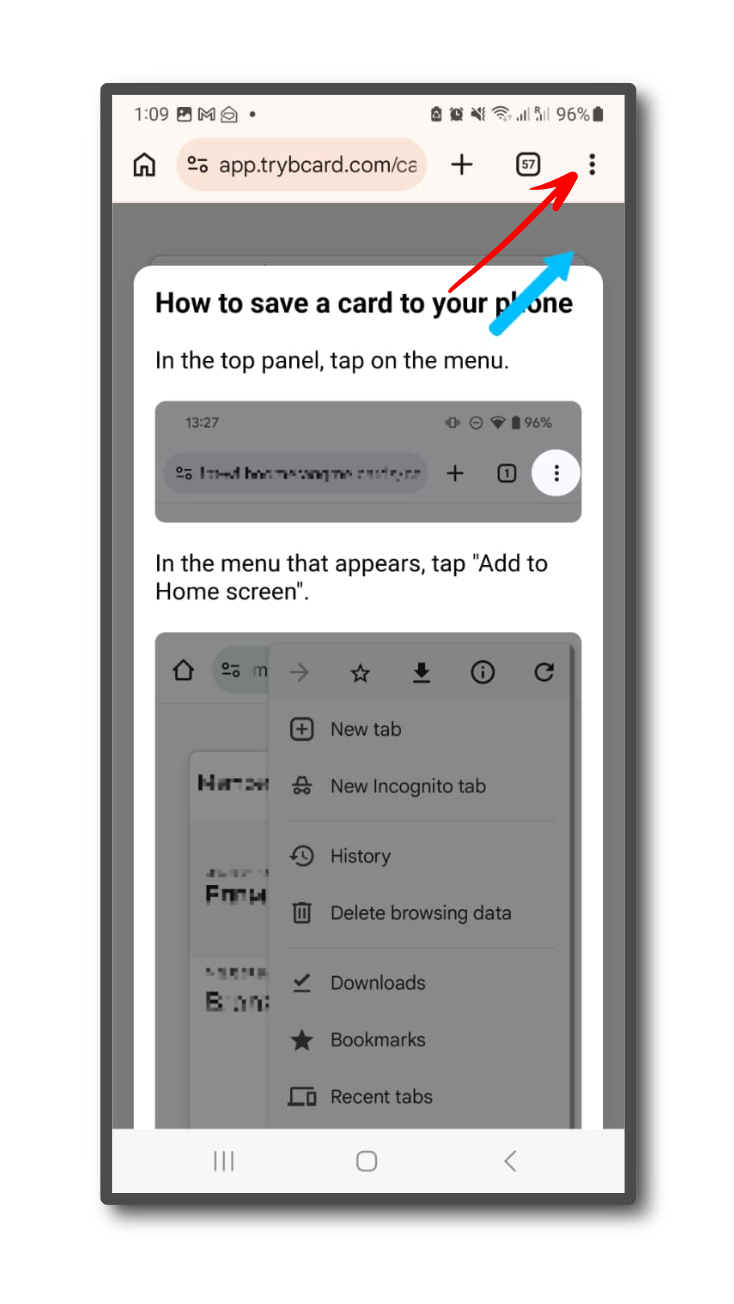
9. To add the card to your homepage, click on the menu icon in your browser.
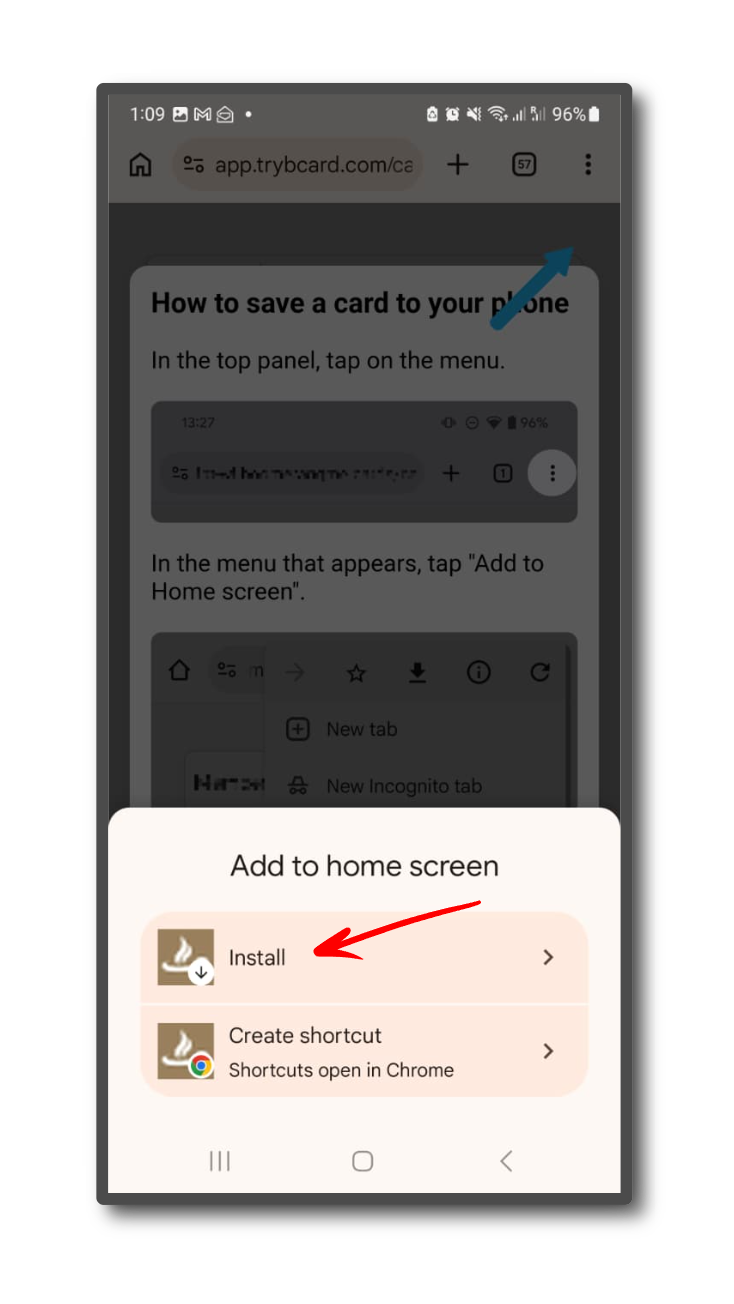
✅ We recommend using the Chrome browser. In this case, you can collapse this prompt window and you will see a pop-up window and a "install" button. Click it and add the map icon to your phone's home screen.
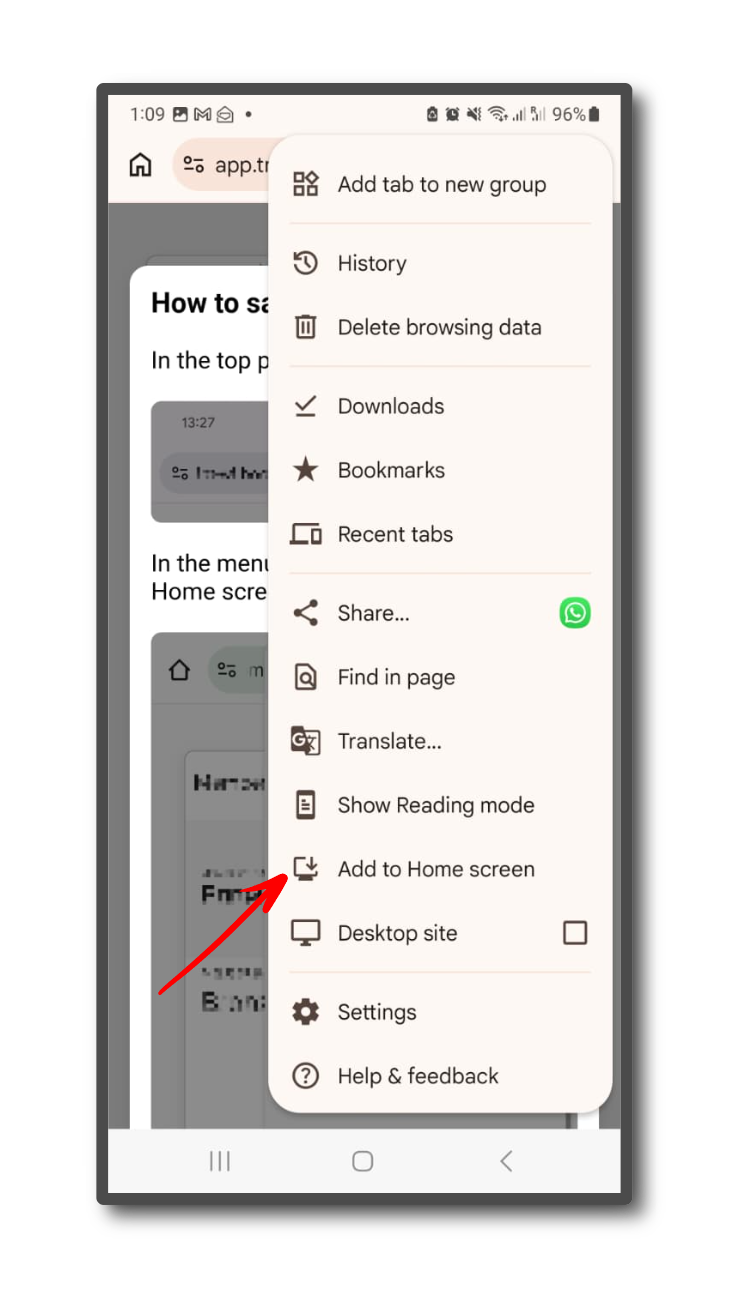
Press Add to Home screen menu
Press the Install button
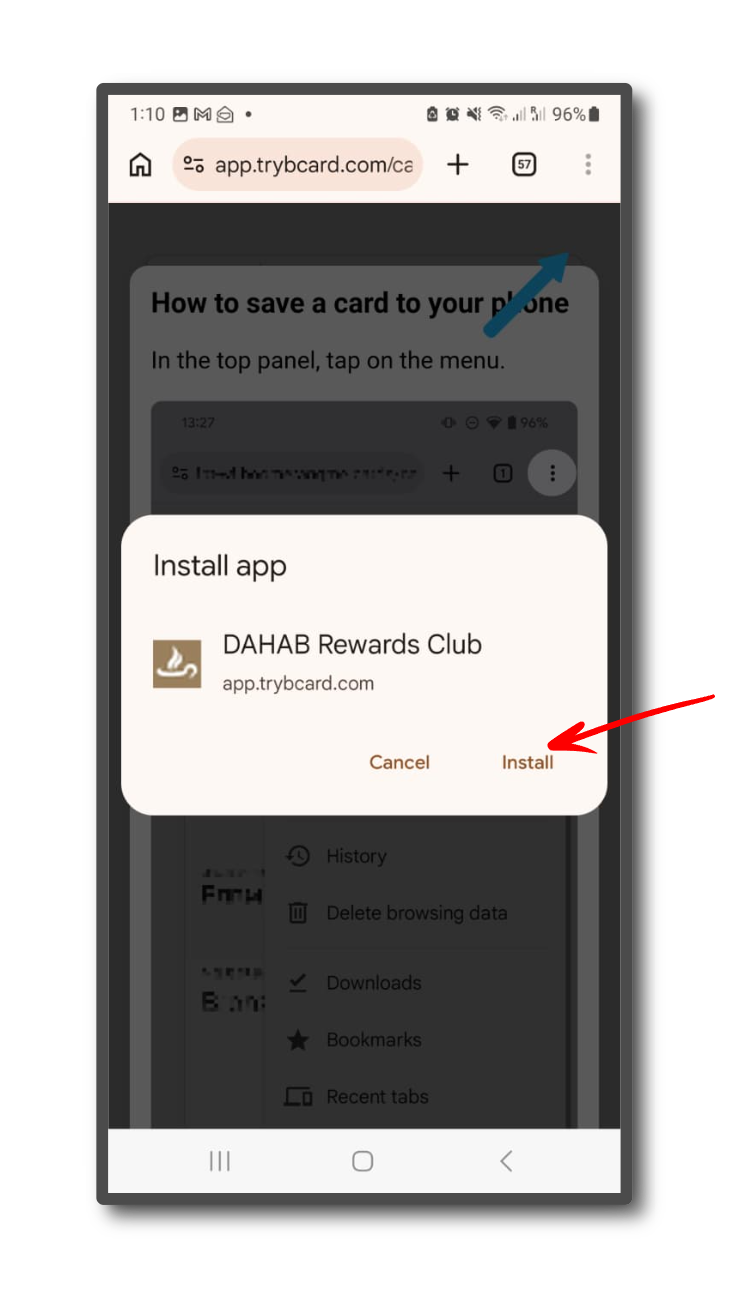
Press Install button again
After about 10-20 seconds, the Card Icon will appear on your Android phone with your other apps. If you cant find it, navigate to the last page of the apps and it should be there.
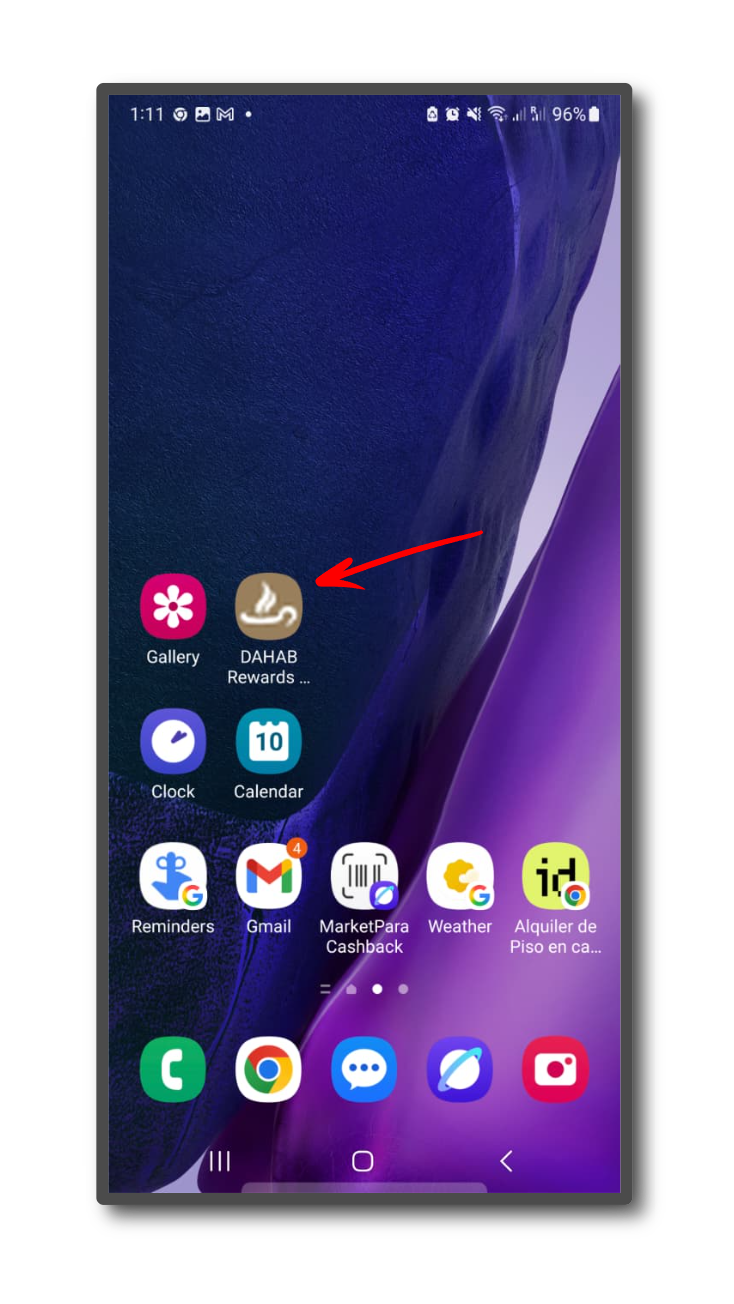
Once you press the PWA icon, your card will open