TRYB Loyalty > Left-Hand Menu > Cards > Select Card
1. Follow the above-mentioned workflow to land on the Card Information section.
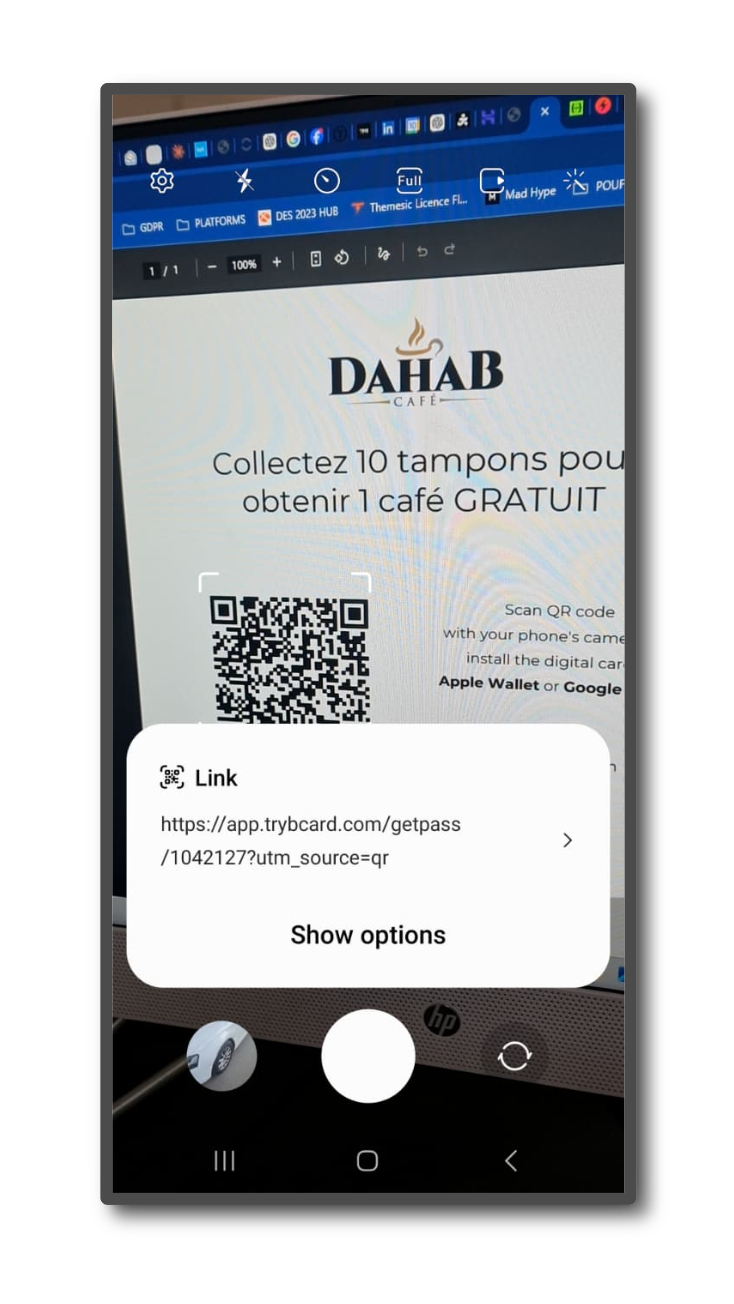
2. Scan the QR code from your Android device. This takes you to the Card Issuing Form.
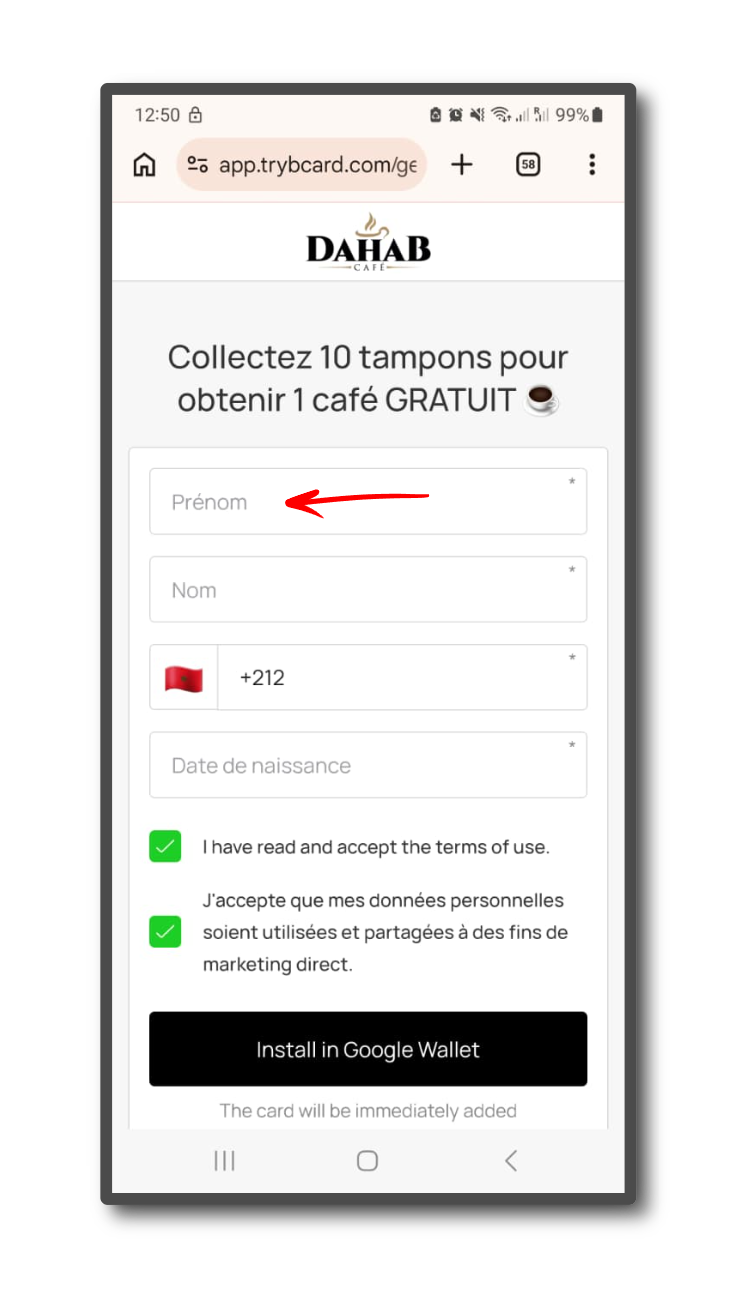
3. Use the First Name field to record your first name.
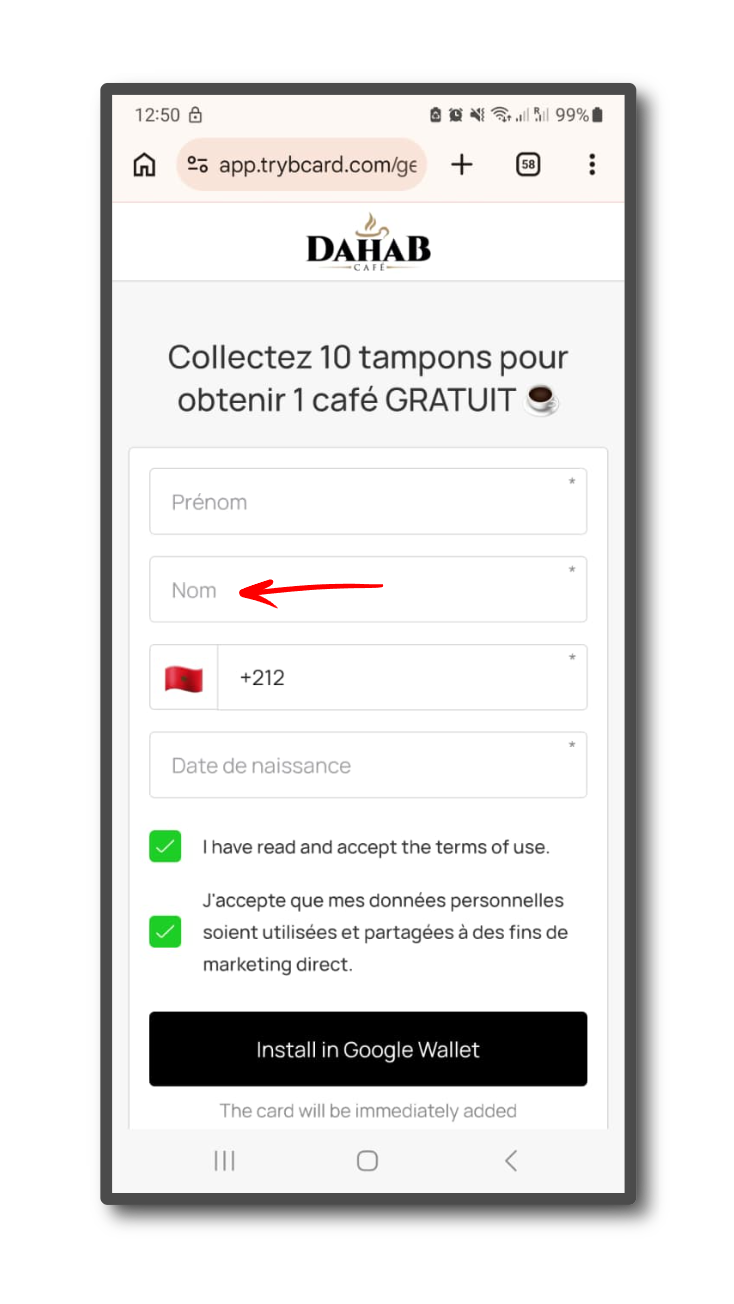
4. Similarly, enter your last name in the Last Name field.
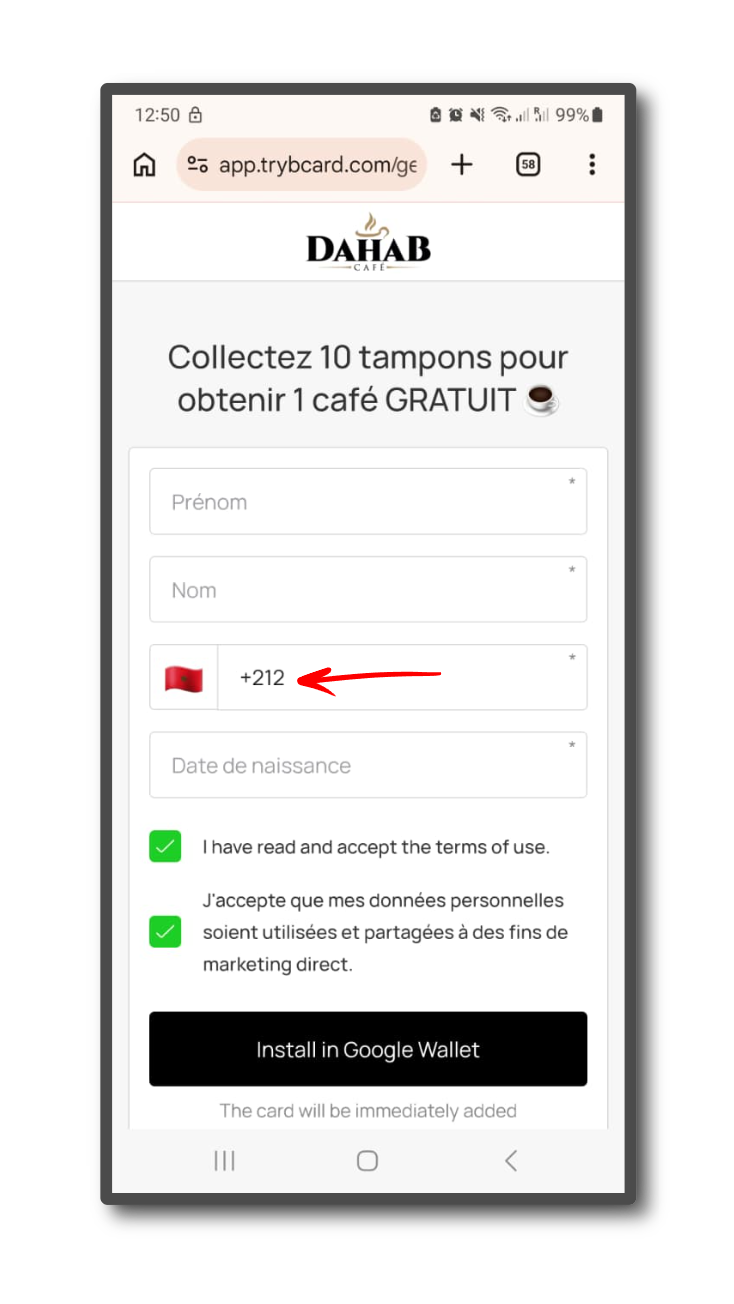
5. Enter your contact number in the Contact Number field.
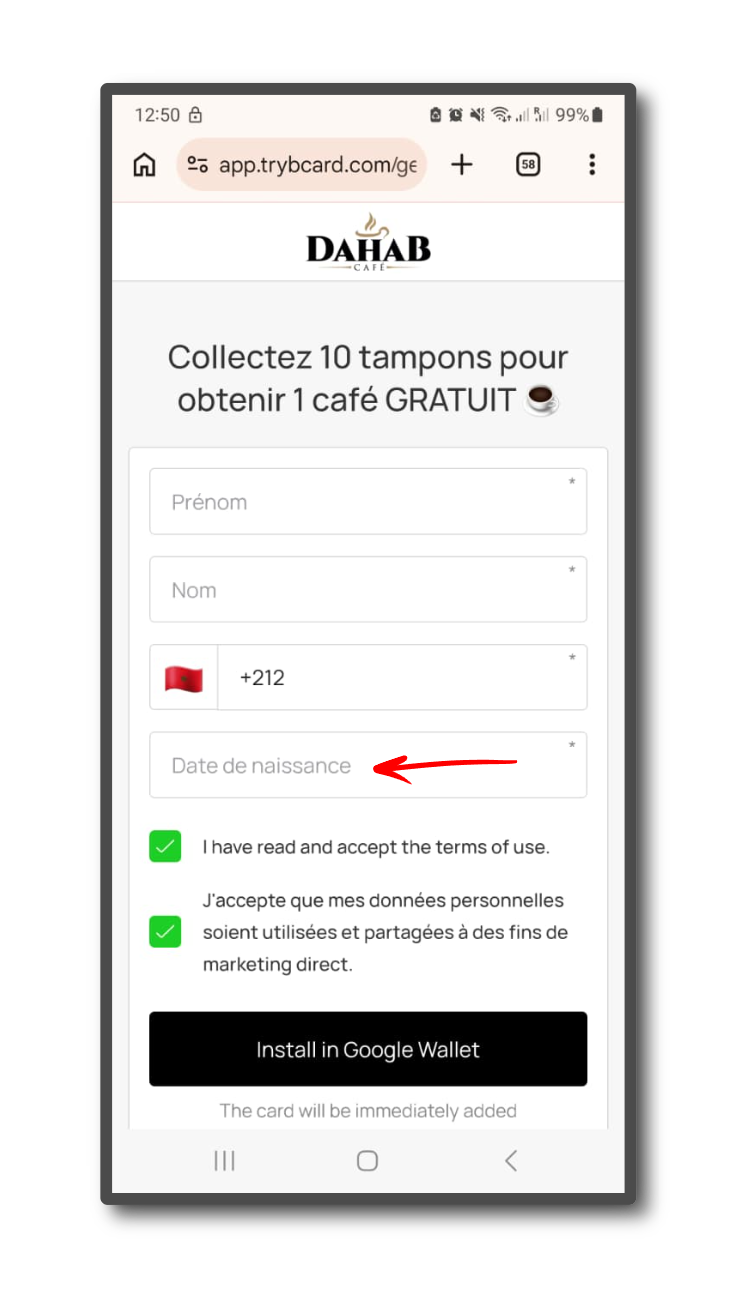
6. Use the Date of Birth field to record your date of birth.
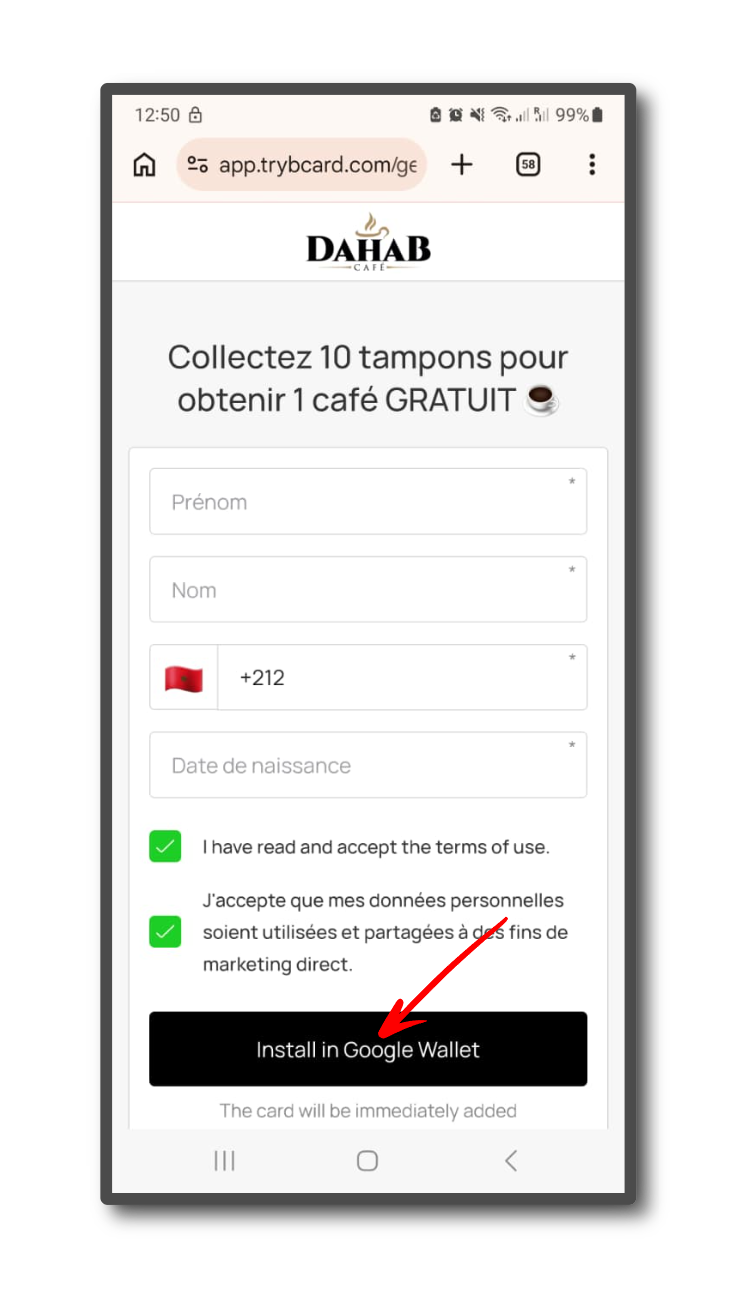
7. To install the card in your Google Wallet, click the “Install in Google Wallet” button.
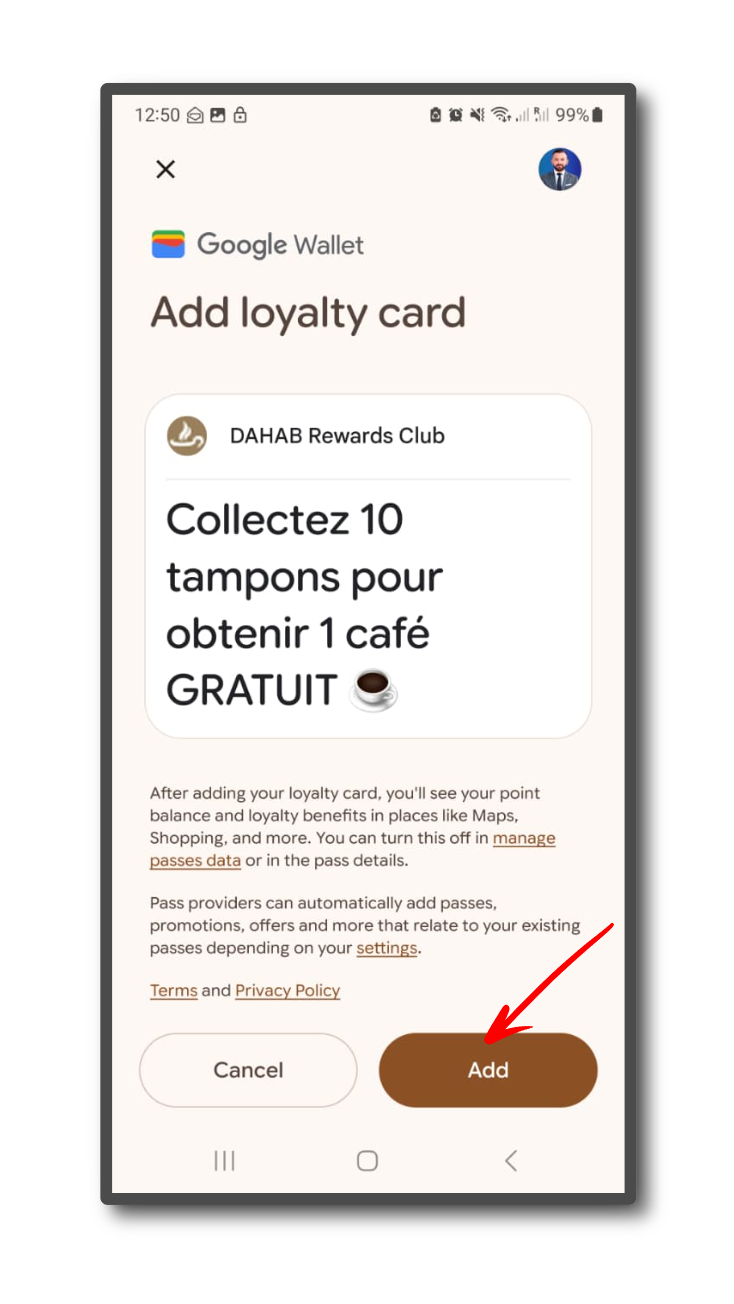
8. This loads the card in Google Wallet. To add the card to wallet, click the Add button.